
Common mistakes that cause document photos to be rejected
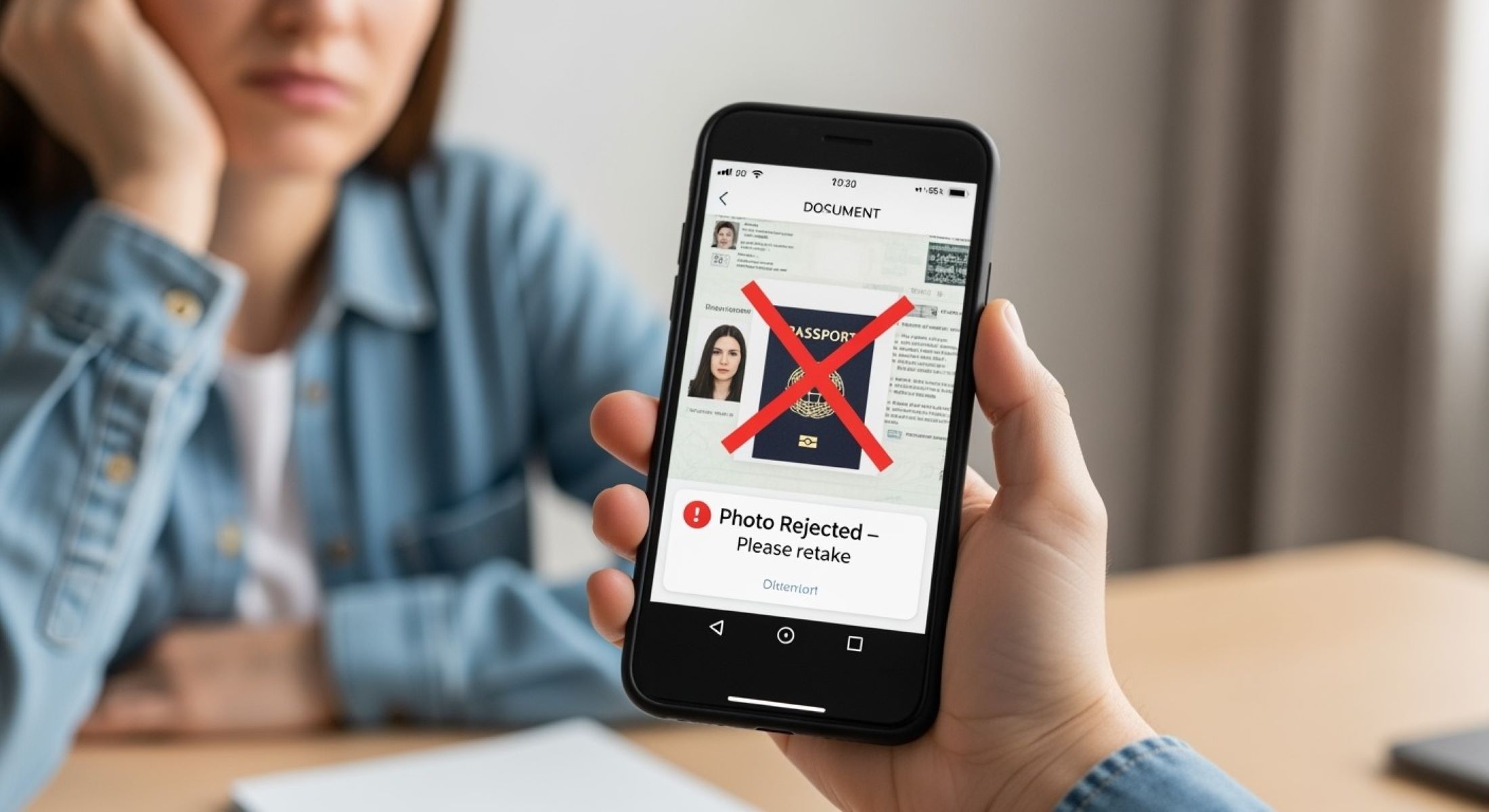
Have you ever been frustrated because your document photo keeps getting rejected? Whether you’re applying for a passport, verifying your identity on an online platform, or submitting documents for official purposes, a rejected photo can be a real headache. But don’t worry — I’ve got you covered. In this guide, we’ll walk through all the common mistakes people make when taking document photos and how you can avoid them.
Why Document Photo Quality Matters
When it comes to submitting official documents, the quality of your photo is not just a minor detail—it’s absolutely crucial. Verification systems, whether automated or manual, rely entirely on clear and readable images to confirm your identity. A blurry or poorly lit image can cause the system to misread your personal information or even reject your submission outright. This isn’t just about bureaucracy; it’s about ensuring security, preventing identity theft, and protecting both you and the organization requesting your documents. Imagine trying to recognize a friend in a dimly lit room—it’s almost impossible. The same principle applies here: if the system can’t “see” your details clearly, your photo will be flagged.
High-quality document photos also help speed up the verification process. Low-quality or incorrect photos often lead to repeated submissions, additional verification requests, and frustrating delays. Every time a document is rejected, it means more time and effort for you and the reviewer, creating unnecessary bottlenecks. By ensuring your photo is clear, well-lit, and complete, you reduce the chances of delays and make the verification process smoother and faster. This is especially critical for time-sensitive applications like travel documents or online banking verification.
Furthermore, document photo quality matters because it directly impacts fraud prevention. Verification systems are designed to detect inconsistencies, alterations, or fake documents, but they can only do so if the photo is sharp and accurate. Poor-quality images make it difficult to identify forged information, increasing the risk of fraudulent activities slipping through. For organizations handling sensitive information, such as financial institutions or government agencies, maintaining high photo standards is essential to protect both their operations and their clients.
Lastly, a high-quality document photo ensures long-term usability and compliance. Many platforms store these photos for future reference, and blurry or incomplete images may require repeated submissions over time. By submitting a clear, well-framed image initially, you avoid repeated hassles and ensure that your document meets official requirements consistently. Think of it as investing a little extra effort upfront to save yourself multiple headaches down the line—it’s a small step that has a big payoff when it comes to identity verification and secure processing.
Most Common Reasons Document Photos Get Rejected
- Blurry or out-of-focus images: One of the leading causes of rejection is a photo that lacks sharpness. Cameras can struggle to focus on the text, especially in low light or if the device is moving. Even slight blurriness can prevent verification systems from reading crucial information like your name, date of birth, or document number. Poor focus can also make it impossible for manual reviewers to confirm the authenticity of the document, leading to immediate rejection.
- Glare and reflections on the document: Shiny surfaces on IDs, passports, or driver’s licenses often reflect light, creating bright spots that obscure text or images. Overhead lights, direct sunlight, or camera flash can all produce glare that renders a document unreadable. This is particularly common with laminated cards, where even small reflections can hide vital details needed for verification.
- Cropped or cut-off documents: When parts of the document are missing from the photo, verification systems cannot access all the required information. Photos that cut off corners, edges, or important sections such as barcodes or signatures are frequently rejected. Complete visibility is essential because missing elements can be interpreted as an attempt to hide information or simply as an unusable submission.
- Poor lighting conditions: Dark or uneven lighting can make documents unreadable, wash out details, or create shadows that obscure text. Low-light photos reduce contrast and clarity, making it difficult for both automated systems and human reviewers to extract essential information. Consistent and even lighting is crucial for a document to pass verification.
- Shadows on the document: Shadows caused by hands, phones, or nearby objects can block key details on a document. Even subtle shadows over numbers, photos, or signatures can make the document unusable. Shadowed areas confuse verification systems and often require resubmission with a fully illuminated document.
- Using filters or editing the photo: Editing a document image or applying filters may seem harmless, but it can distort colors, contrast, and details. Automated verification tools are designed to detect tampering, and any modification can lead to rejection. Filters can also obscure text, fade important security features, or make the document appear inauthentic
Blurry or Out-of-Focus Photos
| Issue | Why It Happens | Impact on Verification | How to Fix It | Pro Tip |
| Blurry document photos | Shaky hands while taking the picture | Makes text, numbers, and personal details unreadable, causing automatic rejection | Hold your phone steady or place it on a flat surface | Use a tripod or stable surface to prevent movement |
| Poor camera quality | Low-quality cameras fail to capture fine details, especially small fonts or barcodes | Use a higher resolution camera if possible | Upgrade to a modern smartphone or camera for clearer shots | |
| Low light conditions | Insufficient light causes the camera to struggle with focus, producing blurry images | Take photos in bright, even lighting | Use natural light or multiple light sources to illuminate the document evenly | |
| Incorrect focus | Camera may focus on the background instead of the document | Tap on the document on your screen to focus before snapping | Double-check focus by zooming in to see if text is sharp | |
| Movement during capture | Any motion while the photo is being taken can result in blur | Keep your hands or the device completely still | Use the phone’s timer mode or a remote shutter to capture a stable image |
Glare and Reflection on the Document
Glare and reflections on documents are one of the most common reasons photos get rejected. When light bounces off the shiny surface of an ID, passport, or driver’s license, it can create bright spots that obscure critical information. Even a small reflection can make text unreadable or hide security features that verification systems rely on. This issue is particularly common with laminated cards or documents with glossy finishes, where light interacts unpredictably with the surface. If the system or reviewer cannot clearly see the details, your submission will almost always be rejected.
The main cause of glare is improper lighting. Overhead lights, direct sunlight, or the camera’s flash often create unwanted reflections that make parts of the document unreadable. People often think using the flash will improve clarity, but on glossy surfaces, it usually has the opposite effect. Even subtle sources of light coming from the side can create reflections that appear as white patches over important details like photos, signatures, or ID numbers. Understanding how light interacts with your document is crucial for a clear, acceptable photo.
Fixing glare is mostly about controlling the environment. Using natural light is ideal, but it’s important to avoid direct sunlight, which can produce harsh reflections. Placing the document near a window or in a softly lit room provides even illumination without creating glare. Turning off the camera flash is essential unless the device has a diffuser that spreads light evenly. Adjusting the angle of the document slightly can also help reduce reflections, but care must be taken not to distort the document’s edges or text.
Finally, patience and testing make a big difference. It may take a few attempts to find the optimal angle and lighting combination, but it’s worth it to prevent rejection. Placing the document on a flat, non-reflective surface can further improve clarity. Review the photo before submitting by zooming in to check for any shiny spots or obscured details. By controlling glare and reflection, you ensure your document is readable, professional, and more likely to pass verification the first time.
Cropped or Cut-Off Documents
- Incomplete visibility of the document: One of the main reasons photos get rejected is that parts of the document are missing from the image. Cropping or cutting off corners can hide important information like ID numbers, barcodes, or signatures. Verification systems and manual reviewers need the full document to confirm its authenticity.
- Taking photos too close: When users hold their camera too near the document, edges or corners often fall outside the frame. This results in images where essential details are cut off, making the document unusable for verification purposes.
- Accidental cropping during editing: Sometimes, users try to crop the image to remove background clutter but unintentionally remove parts of the document itself. Even a small missing corner can trigger rejection, as the system may interpret it as missing or tampered information.
- Zooming in excessively: Using digital zoom can make the document appear larger on the screen but causes edges to be excluded from the photo. The system requires the full boundaries of the document to detect all necessary details accurately.
- Distorted angles from close-up shots: Taking a photo too close at an angle can distort the shape of the document, making it difficult for verification tools to read the text correctly. This is especially problematic for IDs or passports that require precise dimensions to validate.
- Hiding security features: Cropping that cuts off corners or edges can obscure holograms, watermarks, or other security elements. These features are often used by verification systems to ensure the document is genuine.
- Reduced credibility: A cropped or incomplete document raises suspicion for both automated systems and manual reviewers. It may appear as if the user is intentionally hiding information, leading to outright rejection of the submission.
- Re-submission delays: Cropped photos almost always require retakes and resubmissions, causing unnecessary delays in verification processes. Ensuring the entire document is captured properly the first time saves time and frustration.
- Margins and spacing issues: Not leaving enough margin around the document when capturing the photo can make edges blend into the background or appear cut off. A small buffer around the document ensures all parts remain visible and clear.
- Failure in automated recognition: OCR (Optical Character Recognition) and other automated verification tools rely on a complete document. Any cropped or cut-off sections can prevent the system from extracting text accurately, resulting in rejection.
Poor Lighting Conditions
| Issue | Why It Happens | Impact on Verification | How to Fix It | Pro Tip |
| Dark or underexposed photos | Taking pictures in dim rooms or at night | Text and important details become unreadable, causing automatic rejection | Use a well-lit area with natural or soft artificial light | Position the document near a window or under diffused lighting for even illumination |
| Uneven lighting | Relying solely on overhead bulbs or a single light source | Creates shadows and highlights that obscure parts of the document | Use multiple light sources or adjust the angle of the light | Spread light evenly across the document to avoid dark spots |
| Mixed light sources | Combining sunlight with fluorescent or LED lights | Causes color distortion and inconsistent brightness | Stick to one type of lighting for the photo | Natural light is preferred; if artificial, ensure all sources have similar color temperature |
| Shadows on text | Objects, hands, or phone casting shadows over the document | Critical details like ID numbers or signatures may be blocked | Keep hands and objects away from the document when taking the photo | Elevate the camera directly above the document to minimize shadows |
| Reflections due to improper lighting | Light reflecting off laminated or glossy surfaces | Shiny spots obscure information, triggering rejection | Use angled lighting and turn off flash | Slightly tilt the document to reduce glare without distorting text |
Shadows on the Document
Shadows on a document might seem like a minor issue, but they can completely ruin an otherwise perfect photo. Even if your lighting is bright and the image is in focus, shadows can obscure key details such as ID numbers, expiration dates, or signatures. Verification systems, both automated and manual, often treat shadowed areas as unreadable or suspicious, leading to instant rejection. A single dark patch across a critical section can make the entire submission invalid, wasting your time and effort.
Shadows typically occur when the camera, your hands, or nearby objects block part of the light hitting the document. Even subtle obstructions can produce enough darkness to hide important information. Uneven light sources are another common culprit; a bright lamp on one side and a dimmer area on the other can create stark contrasts, making some sections appear clear while others are almost invisible. This inconsistency can confuse verification systems and trigger rejection.
To prevent shadows, it’s crucial to position both the document and the camera correctly. The camera should be held directly above the document, parallel to the surface, to avoid angled shadows. Ensuring that light is evenly distributed across the entire document is equally important. Multiple soft light sources or indirect natural light can help illuminate every part of the document uniformly, eliminating dark spots that might otherwise interfere with readability.
Finally, placing the document on a flat, bright surface can significantly reduce the chances of shadows appearing. A plain, light-colored background reflects light evenly and prevents shadows caused by nearby objects. Reviewing your photo before submission is essential — zoom in to check for any areas that may appear darker than others. By carefully managing shadows, you increase the likelihood of your document being accepted on the first try, saving time and avoiding unnecessary frustration.